# Tractography: DSI Studio

## Using DSI Studio on Your Local Machine:

Download [DSI Studio](http://dsi-studio.labsolver.org/dsi-studio-download) to your local machine and open the program.

## Using DSI Studio on Oscar:

Copy this text into a terminal on Oscar OpenOnDemand to load DSI Studio as an apptainer:

`module load dsistudio-container`

`apptainer run -W $PWD $DSISTUDIO_CONTAINER`

Then enter this text to open the DSI Studio GUI:

`dsi_studio`

## Perform Whole Brain Tractography:

Select “*Step T1: Open Source Images*” to load diffusion MR images and create a SRC file. It is recommended to use diffusion images that have already been corrected for motion and susceptibility distortion (for example, via FSL TOPUP and Eddy).

<figure><img src="/files/qf7oSh7KUa6nsEgMinhS" alt="“Step T1: Open Source Images” can be selected under the “Tractography” panel on the left side of the dsi-studio GUI. Once selected, users can upload their diffusion files."><figcaption><p>Select Step T1 to open a diffusion image of your choice.</p></figcaption></figure>

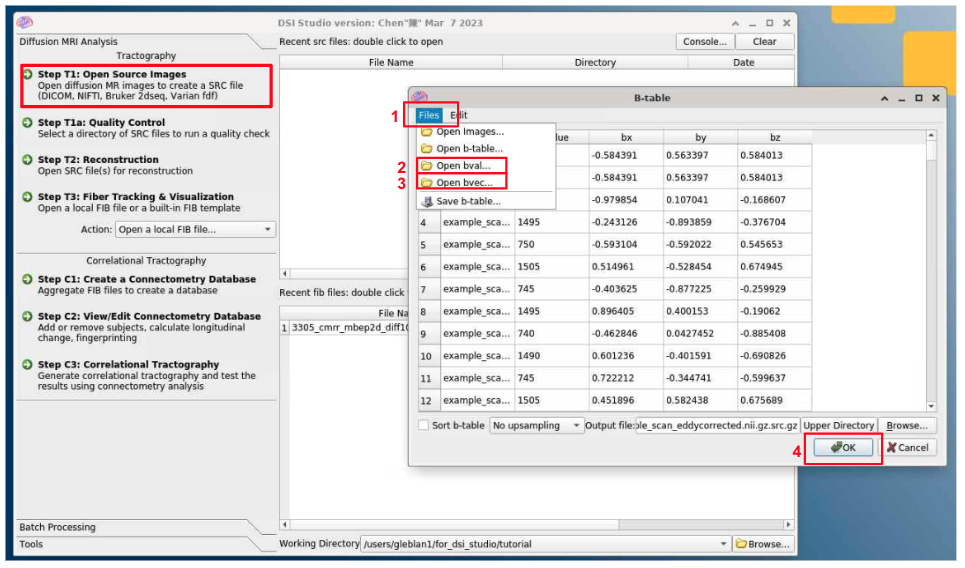
If there are existing .bvec and .bval files in the same directory you entered the diffusion images from, a b-table will be generated automatically. Otherwise, you may manually create a b-table by loading the files into the pop up window via the file tab in the top left corner. Once that is saved, the SRC file will be created and stored in the main window.

<figure><img src="/files/TNige44e7OxSmOzTu2MY" alt="In the “Step T1” pop-up, you can create a b-table by selecting “Files” and then “Open bval…” and “Open bvec..”. Once the table is filled, press “OK”."><figcaption><p>To manually create a b-table, enter the file tab, manually select the bval and bvec files, and hit OK. This will save the b-table as part of the SRC file.</p></figcaption></figure>

Select "*Step T2: Reconstruction*" and choose the SRC file. This step converts the SRC file into an FIB file, which will be used for fiber reconstruction.

<figure><img src="/files/QVZCr8i2AxGmSWjZNJfb" alt="Select &#x22;Step T2: Reconstruction&#x22;, located in the Tractography panel on the left side of the dsi-studio GUI. Then, select the diffusion src file that was created in Step T1."><figcaption><p>Select Step T2 to use the SRC to begin reconstruction of the white matter tracts.</p></figcaption></figure>

A new window will appear. Confirm the appearance of the mask and select your preferred reconstruction method. Typically, QSDR is chosen for images in MNI space. Otherwise, GQI is recommended. DTI metrics will be generated even if the DTI button is not selected.

You may then press "Run Reconstruction". This may take a few minutes, and when it is complete the reconstructed image will appear in the lower section of the main window with a filename ending in ".fib.gz".

<figure><img src="/files/xivaD2jR3TjgVVCiGQ5Y" alt="The “Step T2: Reconstruction” pop up window. Here, you can confirm the mask coverage, select a reconstruction method, and run the reconstruction."><figcaption></figcaption></figure>

Select "Step T3: Fiber Tracking" and open the FIB file to begin generating a tractography map.

<figure><img src="/files/BIxtQWzlyNDpT5ney09a" alt="Select “Step T3: Fiber Tracking &#x26; Visualization” under the “Tractography” panel on the left side of the dsi-studio GUI. Once selected, users can upload the FIB file that was created in Step T2."><figcaption></figcaption></figure>

The following screen will appear. This is the "Tracking Window". By selecting the "Fiber Tracking" button, a whole brain reconstruction of fiber tracts will be created.

<figure><img src="/files/wsWQHm3ugMhbXldDBo49" alt="In the pop-up &#x22;Tracking Window&#x22;, press the button labeled &#x22;Fiber Tracking&#x22; to create a tractography map of the brain."><figcaption><p>DSI Studio's Tracking Window, opened after selecting Step T3 and entering the FIB file.</p></figcaption></figure>

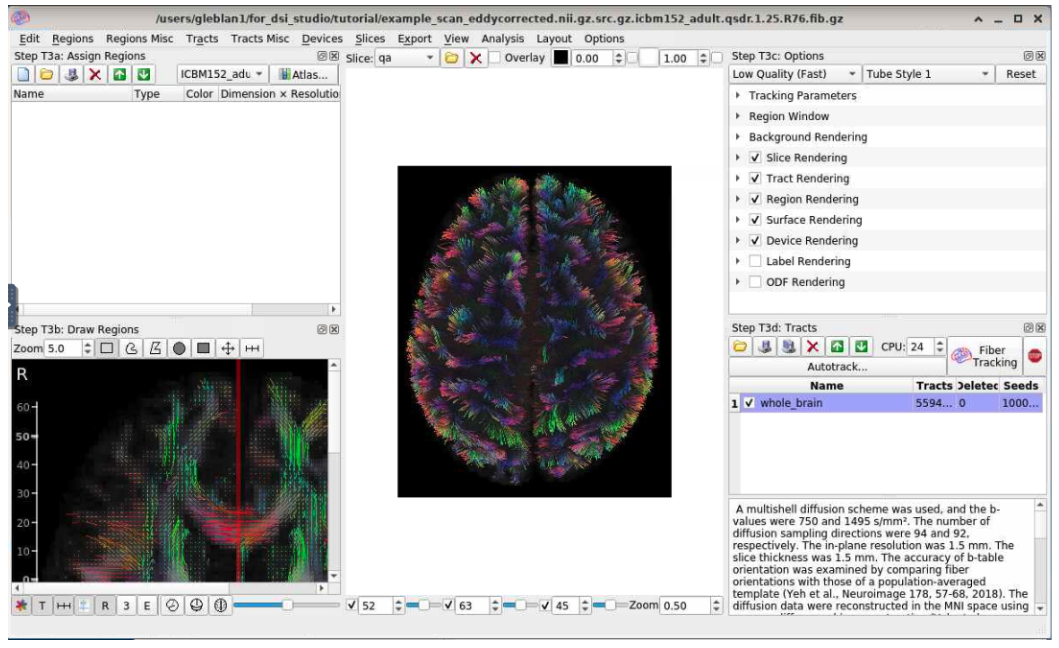
After fiber tracking is complete, the tracking window will show the whole brain tractography map. For more information on quality assessment and troubleshooting, refer to [DSI Studio's documentation](https://dsi-studio.labsolver.org/doc/gui_t3_whole_brain.html).

<figure><img src="/files/chFHvwBVSvoGmMgHf6aW" alt="The Tracking Window will automatically update after fiber tracking it complete. The image of the brain now shows the reconstructed fiber tracts."><figcaption><p>The whole brain tractography can be viewed in the center of the Tracking Window after selecting the "Fiber Tracking" button.</p></figcaption></figure>


---

# Agent Instructions: Querying This Documentation

If you need additional information that is not directly available in this page, you can query the documentation dynamically by asking a question.

Perform an HTTP GET request on the current page URL with the `ask` query parameter:

```
GET https://docs.ccv.brown.edu/bnc-user-manual/analysis-pipelines/diffusion-weighted-imaging-dwi-analysis/untitled.md?ask=<question>
```

The question should be specific, self-contained, and written in natural language.
The response will contain a direct answer to the question and relevant excerpts and sources from the documentation.

Use this mechanism when the answer is not explicitly present in the current page, you need clarification or additional context, or you want to retrieve related documentation sections.